Tax Notice Evidence Checklist
Understand the tax notice evidence checklist in TaxNotice.ai: required documents, POA gaps, received items, and drafting readiness in one place.
Last updated 2026-06-24
A tax notice evidence checklist is the working list that tells your firm what is already on file, what still needs to be requested, whether a Power of Attorney gap remains, and whether Draft Response can safely move forward. In TaxNotice.ai, that checklist keeps required documents, received items, and response blockers visible in one case workspace instead of scattering them across email, ShareFile, and memory.
What it is
- The evidence checklist is the case's source of truth for response readiness. It starts from the original notice, the notice type's required documents, and the case's POA requirement.
- Each item shows what matters operationally: Criticality, Status, Source, Reference, and any Blocker that still keeps drafting locked.
- Items can be On File, Requested, Missing Reference, Blocked, Conditional, or Not Required, so your team can tell the difference between evidence you already have, evidence the client still owes, reference gaps, and authorization blockers that stop the case from moving ahead.
TaxNotice.ai can assemble the starting checklist, but your firm confirms what is actually available, records where it lives, and decides when the facts support the response.
Why it matters
Without a checklist, tax notice work goes soft around the edges. A preparer may know a bank statement was requested. A partner may assume the POA is already handled. Someone else may remember that the notice itself is in intake. None of that is reliable enough to draft a response against a deadline.
The checklist fixes that by making readiness explainable:
- Required documents stay separate from optional or strategy-dependent items.
- POA gaps stay visible as their own blocker instead of getting buried as a generic missing file.
- Received and missing items are visible at the same time, so partial progress is obvious.
- Reference notes point the team back to the external evidence source when a reviewer needs to find it again.
That is what turns "we think we have enough" into "we can show why this case is ready."
How it works in TaxNotice.ai
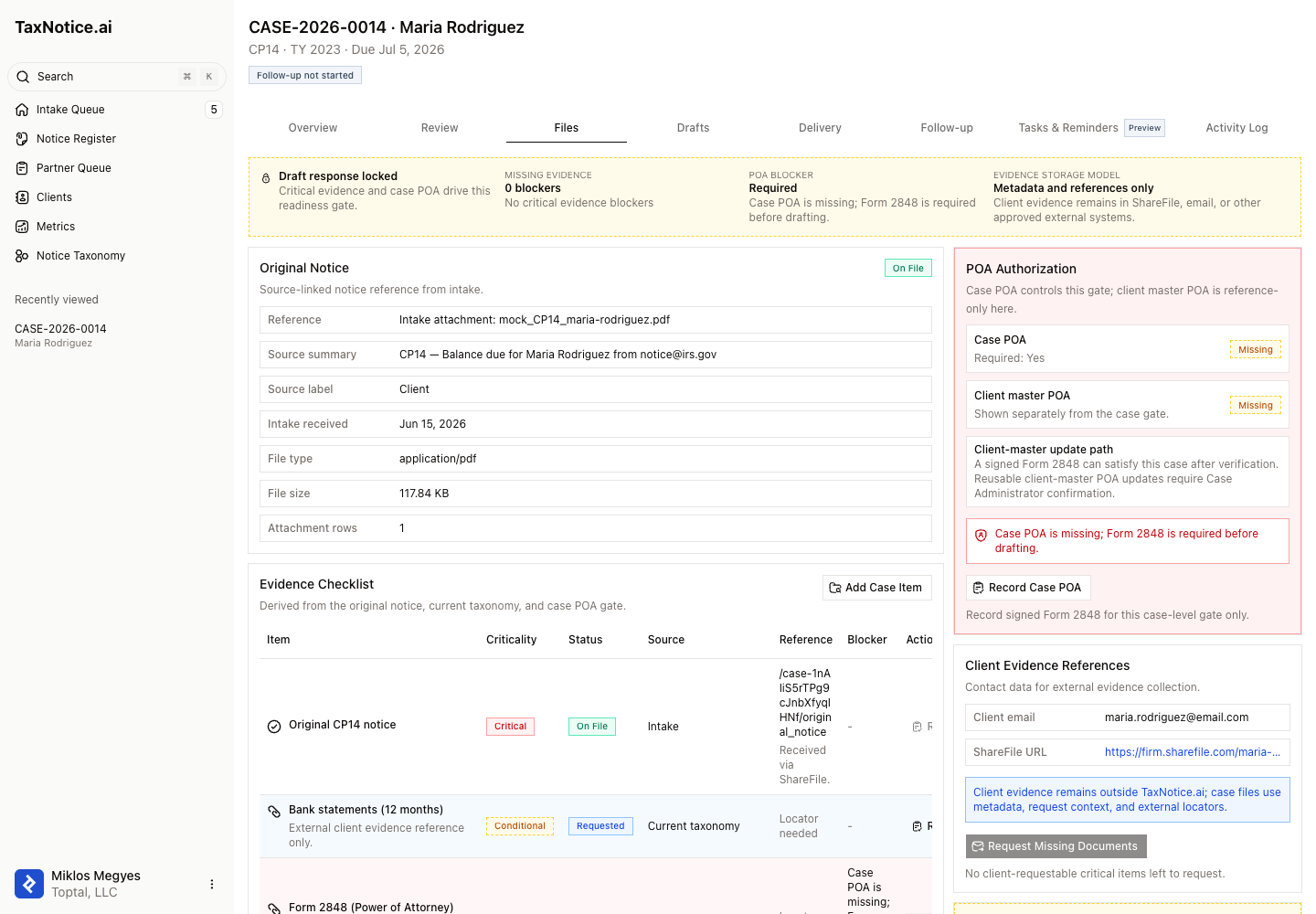
On the Files tab, TaxNotice.ai shows the checklist alongside the Draft Response gate and the POA panel. In the live case workspace, the checklist rows use plain status labels like On File, Requested, Missing Reference, Blocked, Conditional, and Not Required. The same screen shows whether an item is Critical or Conditional, where it came from, and the reference a teammate would use to locate it later.
In a blocked case, that matters immediately. One item may already be on file from intake. Another may be marked Requested because the client still owes it. A POA row can stay Blocked until a signed Form 2848 is recorded. While those gaps remain, Draft Response stays disabled and the case tells you exactly why.
The checklist also keeps the storage boundary clear. Client evidence usually stays in ShareFile or another approved external system. TaxNotice.ai tracks the checklist state, the request context, and the locator notes your team needs to find the supporting document again.
When every critical item is satisfied and the POA requirement is clear, the gate opens and the case can move into Draft Response. Until then, the checklist gives the preparer and reviewer the same answer about what still needs attention.
Related
See how your team would work a live checklist
TaxNotice.ai is opening to a small group of founding firms before launch. Request founding firm access to see your notice work handled this way.