
Manage tax notice client records
Manage tax notice client records in TaxNotice.ai: search the client master, add new clients, update contact and POA data, and archive old records.
Last updated 2026-06-18
Tax notice client records are the firm-level reference records that keep new notices, open cases, document requests, and partner ownership tied to the right taxpayer. TaxNotice.ai can suggest a client match during intake, but your firm decides whether to use an existing record or create a new one. This guide shows a Case Administrator how to find, create, update, archive, and restore client records without losing masked identity data or case history.
Before you start
Open Clients from the left navigation. This workflow is owned by the Case Administrator role, because the client master feeds intake matching, case creation, document requests, drafting, and follow-up.
TINs stay masked after save
You enter a full TIN only when you create a client. After that, TaxNotice.ai shows the masked value in the list and the client detail view, and the normal edit flow keeps the TIN read-only.
Steps
Search the client list first
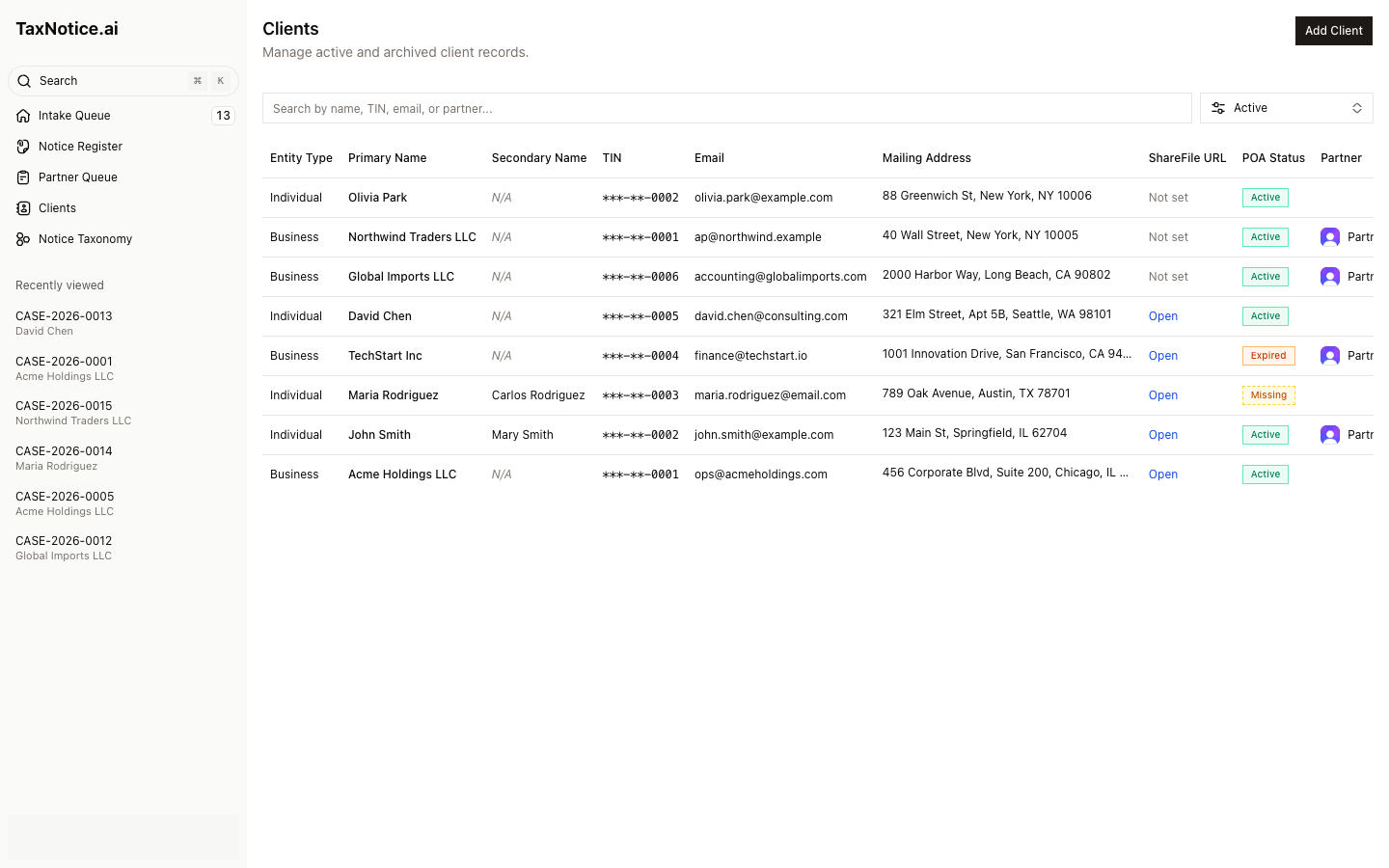
Open Clients and scan the table before you add anything new. The search box looks for name, TIN, email, or partner, and the filter switches between Active and Archived records. The list is built for quick review: Entity Type, Primary Name, Secondary Name, TIN, Email, Mailing Address, ShareFile URL, POA Status, and Partner all stay visible in one place so you can catch a missing ShareFile link or an expired POA before it blocks notice work downstream.
Open the client before you change it
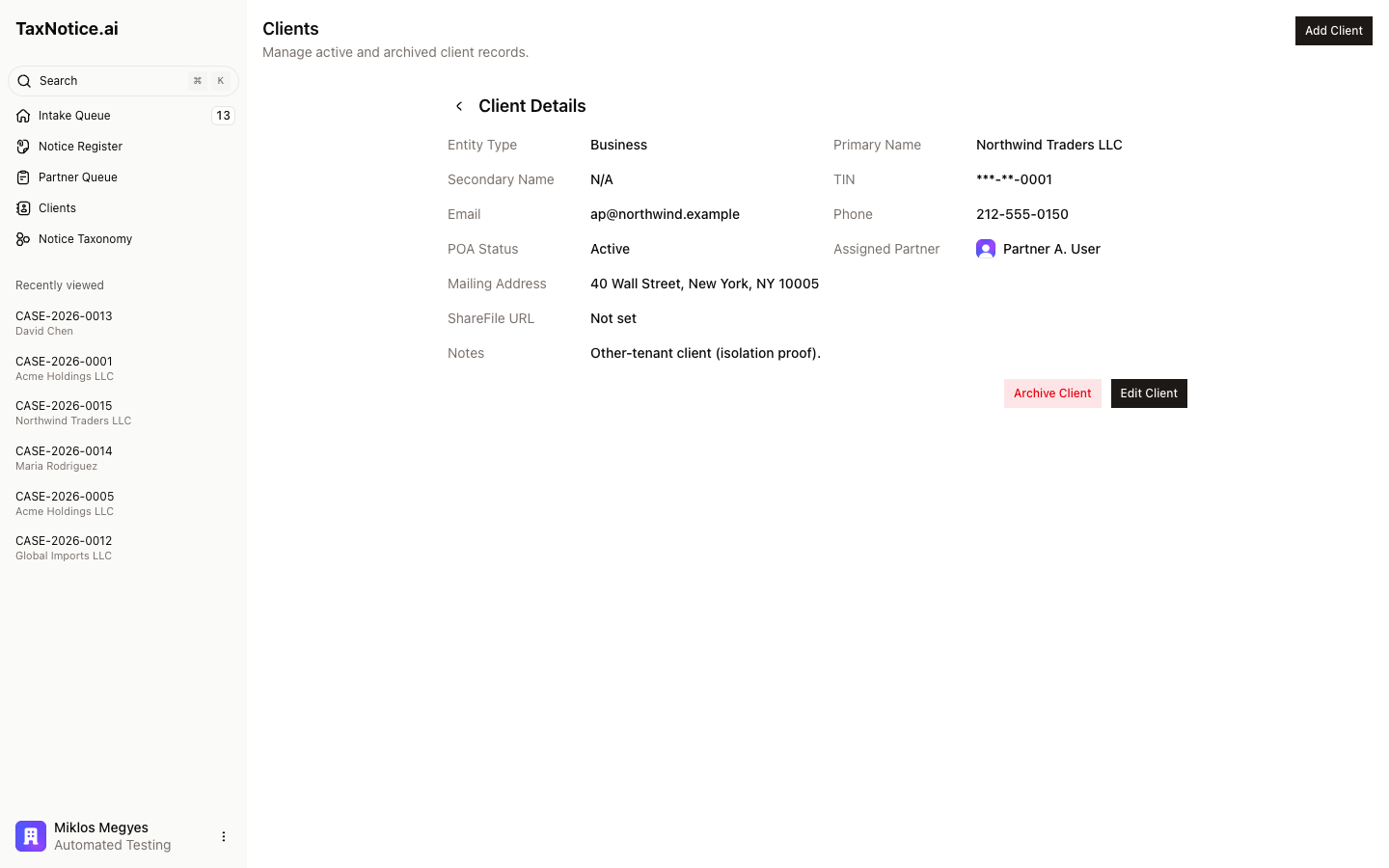
Click a row to open Client Details. This view gives you the current record exactly as the rest of the product will use it: entity type, names, masked TIN, email, phone, mailing address, ShareFile URL, POA Status, Assigned Partner, and Notes. Use Back to Clients to return to the list once you've confirmed whether this is the right taxpayer.
Add a new client when no match exists
If search doesn't turn up the right record, click Add Client. On Add New Client, complete the fields the workflow depends on: Entity Type (Individual or Business), Primary Name, TIN, Email Address, Phone, Mailing Address, ShareFile URL, Assigned Partner, and any Notes you want the firm to keep with the record. POA Status starts from Active, Missing, or Expired so the rest of the case team can see the authorization picture immediately. Create Client stays disabled until the required fields are complete.
Keep the operational fields current
Use Edit Client whenever the client's contact or workflow details change. The edit form uses the same product labels as creation, then saves with Save Changes. That is where you refresh the mailing address, email, phone, ShareFile link, POA status, assigned partner, or internal notes that the next notice, case, or document request should pick up.
Archive or restore the record without losing history
When a client should stop appearing in ordinary new-work selection, use Archive Client from the detail view. TaxNotice.ai asks for an Archive reason and explains that active and historical cases remain linked and accessible after the archive. If the client needs to become selectable again, switch the list filter to Archived, open the record, and choose Restore Client with a Restore reason.
What happens next
Once a client record is current, TaxNotice.ai can use it everywhere the taxpayer matters: intake matching, case setup, document requests, and future follow-up work. The active client record becomes the clean starting point for triaging incoming notices, creating a case from intake, and gathering evidence. For the bigger picture of how clients connect to notices and cases, see Cases, notices, and clients.
FAQ
When should I add a new client instead of editing an existing one? Search the list first. If the taxpayer is already there, open the record and update it. Add a new client only when there isn't an existing record your firm can use for the notice or case.
Why can't I change the TIN on an existing client? The normal edit flow keeps the TIN read-only after creation. TaxNotice.ai shows the masked value in the client views so your firm can maintain the record without exposing or casually rewriting taxpayer identity data.
What happens when I archive a client? The client stops appearing in the ordinary active list and new-work selection, but existing cases stay linked. If that taxpayer needs to become active again, open the record from the Archived view and use Restore Client.
Which client fields matter most downstream? Email, mailing address, ShareFile URL, POA status, and assigned partner are the ones the next workflow surfaces feel immediately. If any of those are stale, update the client record before the case moves deeper into evidence gathering or drafting.