
Triage incoming notices
Review an incoming IRS notice in the Intake Queue: verify the extracted fields, match the client, classify urgency, and create a case from a verified handoff.
Last updated 2026-06-24
Every IRS notice your firm handles starts in the Intake Queue. A forwarded notice arrives, the system extracts its fields and proposes a classification, and a Case Administrator reviews the result before anything becomes a case. The AI does the first pass; a person checks every value. This guide walks one notice from the queue to a created case.
Before you start
Intake triage is the Case Administrator's job (firms can let Case Preparers help). You reach it from Intake Queue in the left navigation. You don't need anything prepared — the queue already holds the notices forwarded to your firm's intake mailbox.
AI assists; your firm decides
TaxNotice.ai extracts the notice fields, classifies the notice type, and suggests a client match. You review and correct that work before the case is created — and the software never decides the tax position. Required values stay flagged until a person verifies them.
Steps
Scan the Intake Queue
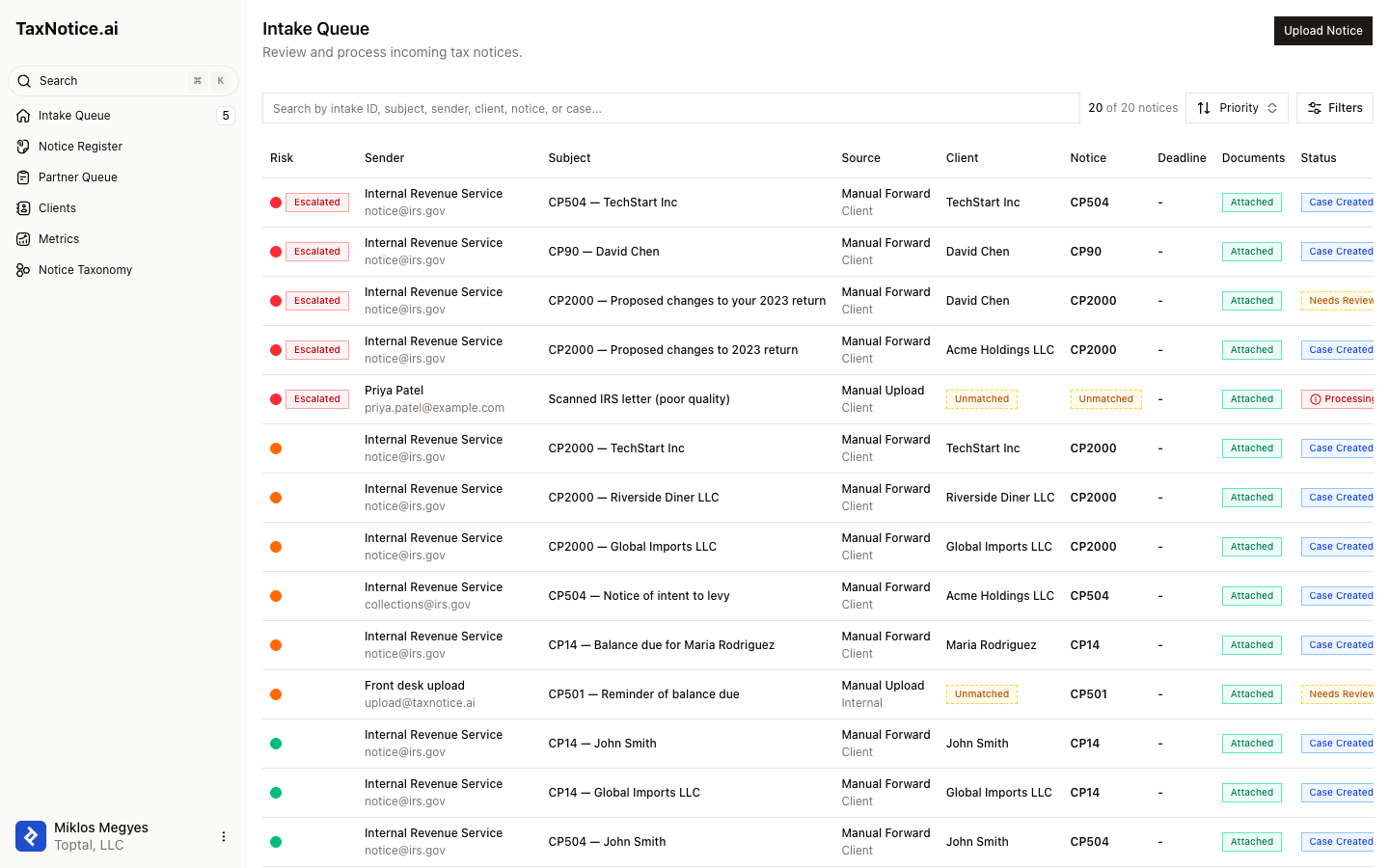
Open Intake Queue. Each row is one forwarded notice. The columns give you the whole picture at a glance: Risk (a priority dot, plus an Escalated badge when a rule fires), Sender, Subject, Source, Client, Notice code, Deadline (tagged Hard, Soft, or Estimated), Documents (Attached or Missing), Status, and Received. The filter bar across the top narrows by status, urgency, confidence, client match, notice code, and date, and the search box finds an item by ID, subject, sender, client, notice, or case.
Open a notice to review
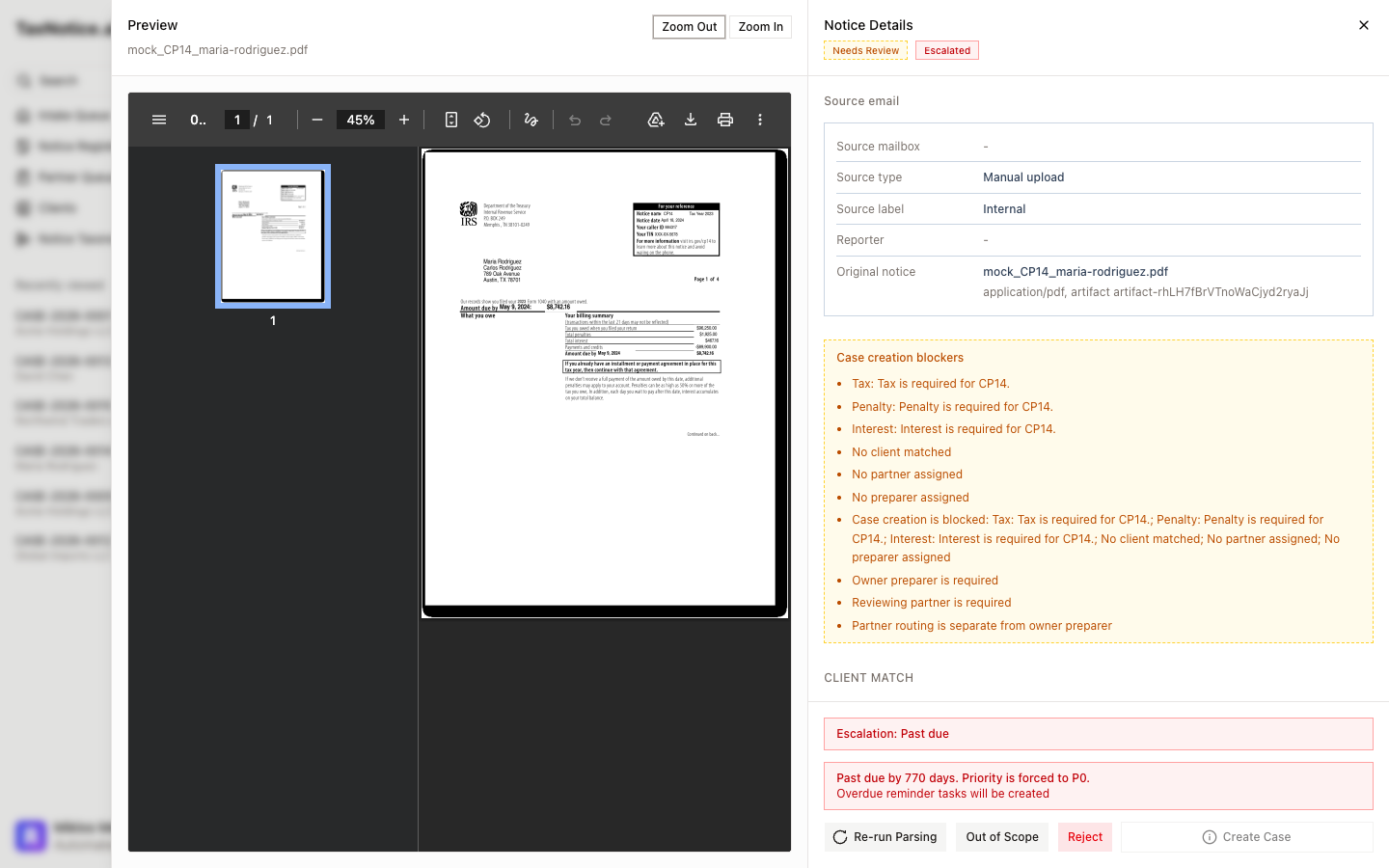
Click a row to open the Notice Details view. The left pane shows the original notice; the right pane holds everything the system extracted and classified, starting with the Source email provenance — which mailbox it arrived in, whether it was auto- or manually forwarded, who reported it, and the original attachment.
Verify the extracted fields
Under Extracted fields, check what the AI pulled from the notice: notice code, tax period, proposed amount, notice date, taxpayer name, and TIN, plus any fields specific to the notice type. Each field carries a status — Ready, Validation error (with the reason shown inline), or Optional. Use Edit to correct a value, or Mark as correct to confirm one. A missing or low-confidence required field keeps the item from becoming case-ready until you resolve it.
Confirm the classification and deadline
Notice match shows the detected notice type — for example, CP2000 — Notice of proposed changes — along with its taxonomy (liability posture, severity) and a Traffic-light rationale that explains the risk, the priority, and the deadline logic in plain language. The Deadline badge reflects that logic; a non-blocking warning can appear (for instance, an estimated deadline or a weekend filing date) for you to review.
Resolve the client match
Client match suggests clients from your master list by TIN and name, each with its match basis and confidence. Select the right one. An unresolved match is a blocker: Create Case stays disabled until the notice is tied to a real client, so a notice can never become a case under the wrong taxpayer.
Create the case — or set it aside
When every blocker clears — fields verified, notice classified, deadline set, client matched, assignees in place — Create Case turns on. Click it to hand the verified item off as a new case. If the notice isn't work your firm handles, use Out of Scope; if the submission is unusable (spam, wrong document, corrupt file), use Reject. Re-run Parsing re-extracts the notice when you need a fresh pass.
The Case creation blockers panel spells out exactly what's still missing, so readiness is never a guess. When the panel is empty, the handoff is clean.
What happens next
Creating the case carries the verified extraction, client, deadline, and assignees straight into the case workspace, and the intake item's status becomes Case Created. Nothing is re-keyed, and the whole review is captured in the case's audit trail. From here you move into the case itself — see Create a case from an intake, then Gather evidence. For how the traffic-light rating is decided, see Deadlines and triage.
FAQ
Does the AI decide anything? No. It extracts the fields, classifies the notice, and suggests a client match. You verify or correct every value, and the case can't be created until the required fields are checked. Your firm decides the tax position.
Why is Create Case disabled? An unresolved blocker is in the way — the Case creation blockers panel lists it, whether that's a missing notice date, an unverified field, or an unresolved client match. Clear the blockers and the button turns on.
What if the notice type isn't recognized? TaxNotice.ai supports 30 common IRS notices. An unrecognized code falls back to General Correspondence so you can still review and route the item, with its notice-specific automation clearly marked as limited.
Out of Scope or Reject — which one? Out of Scope is for a valid notice your firm doesn't handle; it's logged for scope analysis. Reject is for an unusable or irrelevant submission — spam, a wrong document, or a corrupt file.
See it on your own notices
TaxNotice.ai is opening to a small group of founding firms before launch. Request founding firm access to run your notice intake this way.