
IRS notice partner review & approval
Run an IRS notice partner review in TaxNotice.ai: inspect the submitted package, request revisions, and approve it with a typed signature before delivery.
Last updated 2026-06-24
An IRS notice partner review is where your firm checks the submitted response package against the original notice, the verified case facts, and the deadline before anything becomes Approved to Send. TaxNotice.ai keeps the package, the source notice, and the approval controls in one place, but the partner still makes the judgment call on whether the response is ready.
Before you start
Partner review belongs to the assigned Partner. Open Partner Queue in the left navigation, then move into the case's Review tab or the queue's Review action. The workspace only becomes available for partner action after a preparer has submitted a locked review snapshot through Draft an IRS notice response.
Approval stays with the partner
TaxNotice.ai can show the submitted version, the verified facts, the deadline context, and any open review blockers. It does not approve the response for you. Only the assigned reviewing partner can request revisions, sign, and move the case to Approved to Send.
Steps
Open Partner Queue and pick the case
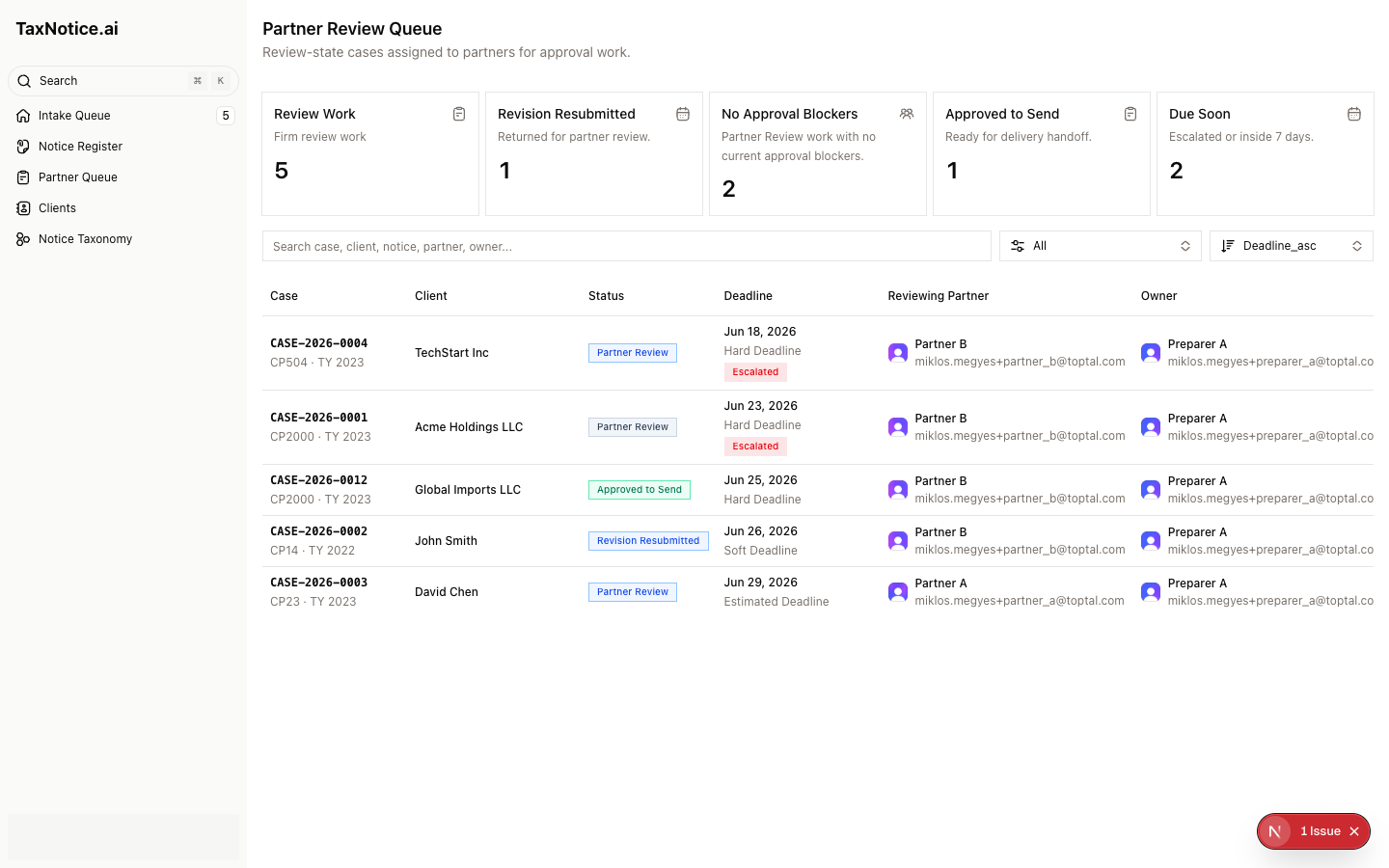
Start in Partner Review Queue. The cards across the top summarize Review Work, Revision Resubmitted, No Approval Blockers, Approved to Send, and Due Soon. Use the search box and the status filter to narrow the list, then open the case from the row or the Review action in the Workspace column.
Record review access if the package is newly submitted
Open the case's Review tab. When the submitted snapshot is ready and the partner has not opened it yet, the workspace shows Open Review. Click it to record that the review has started without changing the case status. If the button is not present, the review-open event is already on record and you can continue in the same tab.
Inspect the submitted package and source notice
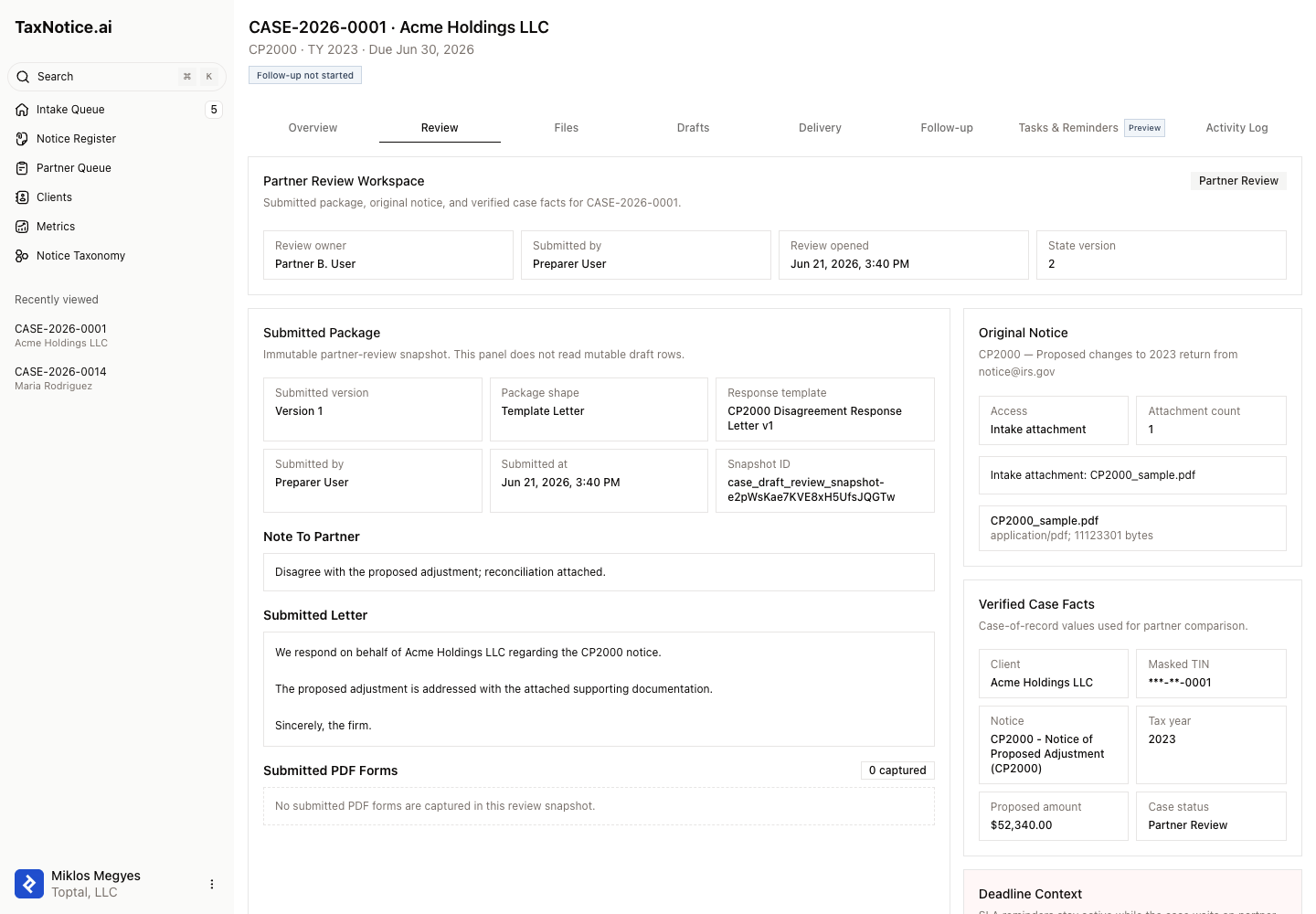
Start with Submitted Package. Review the Submitted version, Package shape, Response template, Submitted by, Submitted at, any Note To Partner, the Submitted Letter, and any Submitted PDF Forms with their artifact references. Then compare that locked snapshot against Original Notice, Verified Case Facts, and Deadline Context so the client, masked TIN, notice code, tax year, proposed amount, deadline, priority, and escalation all match what you intend to approve.
Leave comments or make a small direct edit
Use Review Comments when the preparer needs specific feedback. Choose a Comment kind such as Blocking or Informational, set the Target, write the note, and click Add Comment. For a limited wording fix in the letter itself, use Edit Letter under Current Version Under Review, make the change, and save the partner-authored version. Those direct edits stay visible in Partner Edit History. If a comment or edit was created against an older review snapshot, refresh the workspace before resolving it so the decision applies to the current submitted version.
Request revision when the package needs another pass
If the facts, argument, attachments, or package shape are not ready, use Request Revision in the Revision Loop card. Enter the required Revision reason, include any open blocking comments that should stay attached as must-fix references, and confirm the request. The case leaves active partner action until the preparer resubmits a new review snapshot.
Approve and sign the final package
When the package is ready, clear the blocking comments and review the Approval card. Open Approve and Sign, enter the Typed signature exactly as it should appear, complete the Verification checklist, add an acknowledgement reason if any advisory item stays unchecked, and submit. TaxNotice.ai creates the Approved to Send package and queues delivery handoff, but it does not send anything to the IRS from this screen.
What happens next
Approving locks the reviewed version as the approved package and leaves the case ready for the next operator. From there, continue to Delivery, where the firm records how the response was actually sent. If the package goes back for changes instead, the preparer returns to Draft an IRS notice response and resubmits a fresh version. For the package model behind letter and form combinations, see Response packages.
FAQ
Why is the Review tab read-only? Usually the case has not reached Partner Review yet, or it has already moved past approval into Approved to Send or a closed state. The tab shows the submitted package for reference, but the write controls only turn on for an active review snapshot.
Can I approve without a typed signature? No. The MVP approval path requires a Typed signature entry in Approve and Sign before the package can move to Approved to Send.
When should I edit the letter directly instead of sending it back? Use Edit Letter for a small partner-owned wording change. Use Request Revision when the issue is broader: wrong facts, a missing attachment, a weak argument, or a package choice that should be rebuilt by the preparer.
Why did a comment action ask me to refresh? The review package may have changed since the comment was loaded. TaxNotice.ai blocks stale comment resolution so a partner does not clear a must-fix item against the wrong submitted version.
Does approval send the IRS response? No. Approval creates the locked approved package and queues delivery handoff. Mailing, faxing, uploading, calling, and proof logging happen later in Delivery.
See your review queue this way
TaxNotice.ai is opening to a small group of founding firms before launch. Request founding firm access to run partner review with the same controlled handoff.